How to Listen
Listen on a Windows Computer
Use the free VLC Media Player to play your audiobooks on Windows.
On Windows we recommend VLC Media Player — it is free, reliable and plays the audiobook files we deliver out of the box.
Step 1 — Install VLC Media Player
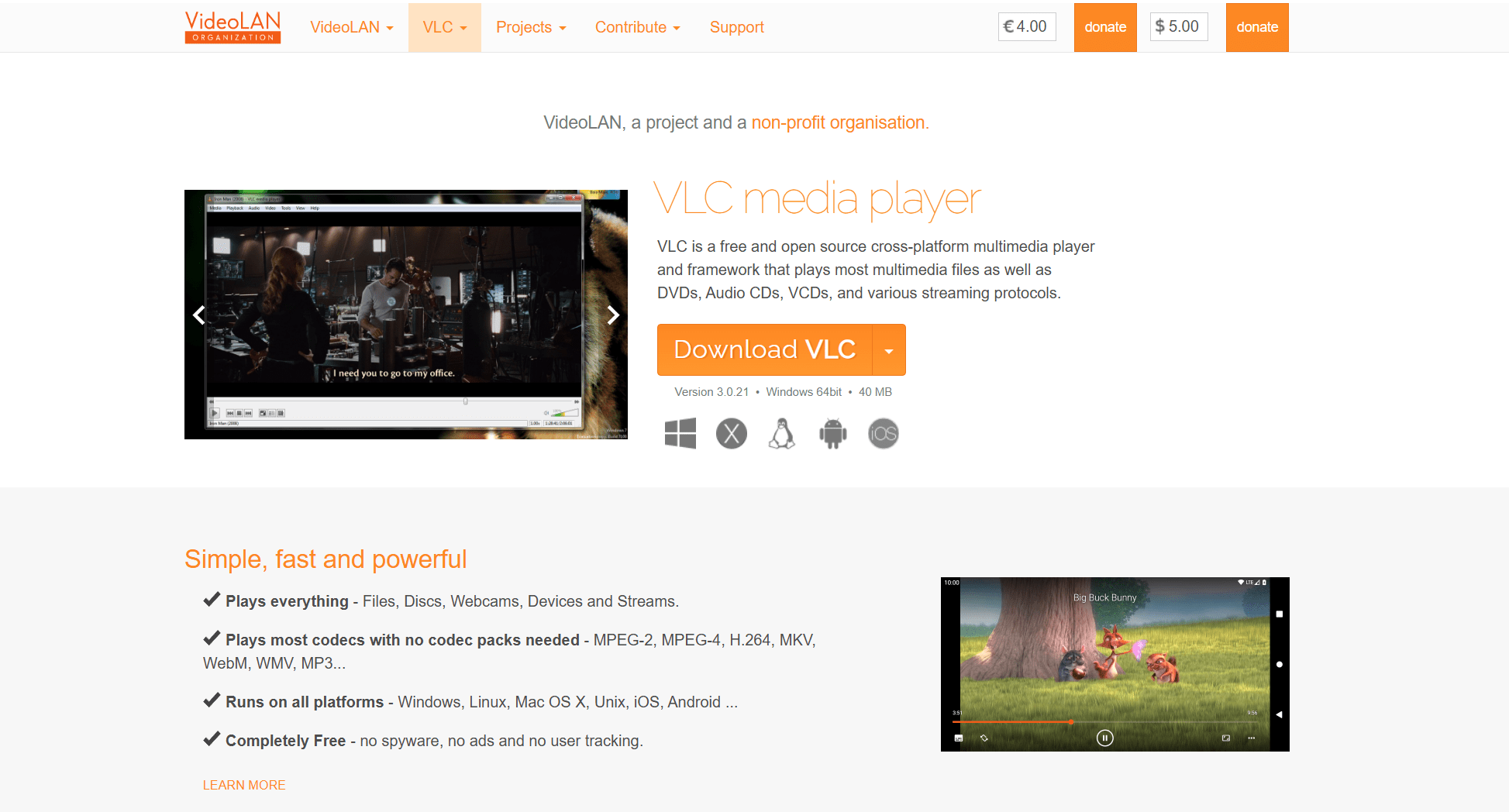
Download VLC from the official website and run the installer. Once installed you are ready to add audiobooks.
Step 2 — Download your audiobook
- Sign in on raksBooks.com.
- Open My Account → My Library.
- Click the download button next to the audiobook you want.
Step 3 — Add the file to VLC
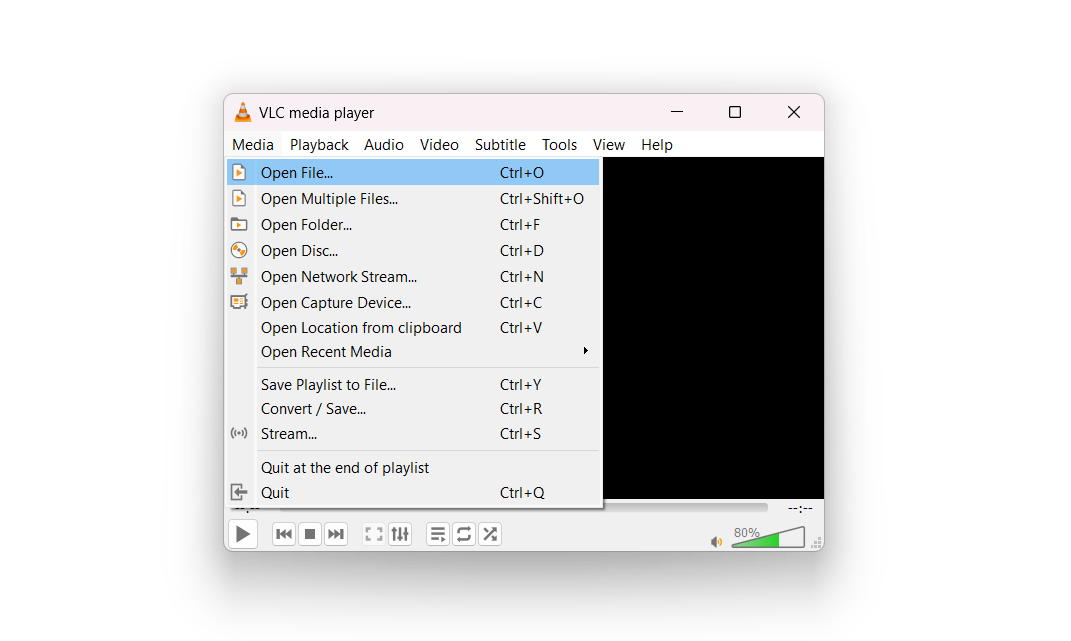
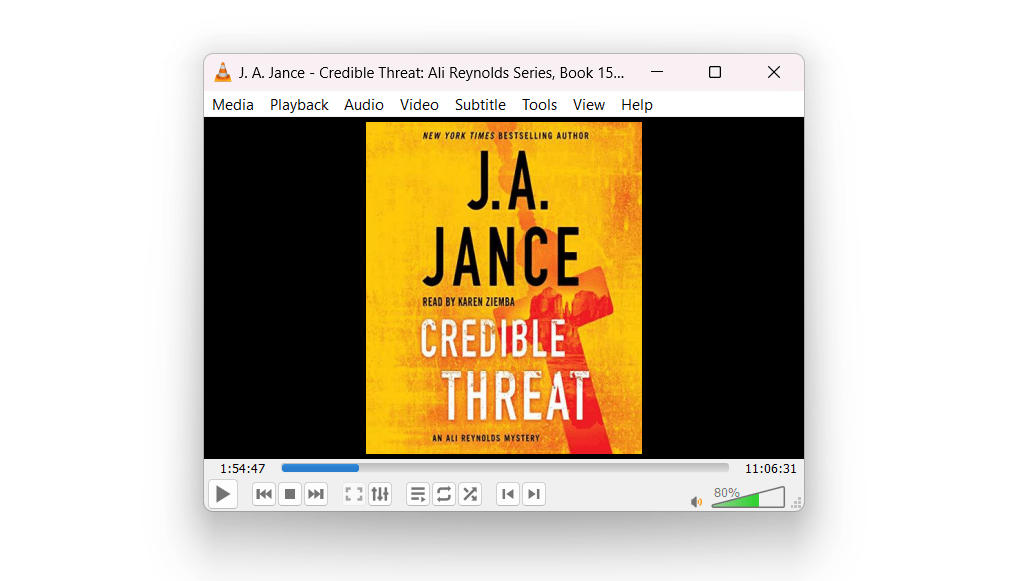
Open VLC and either drag the audiobook file into the window, or use Media → Open File from the top menu.
Step 4 — Navigate chapters
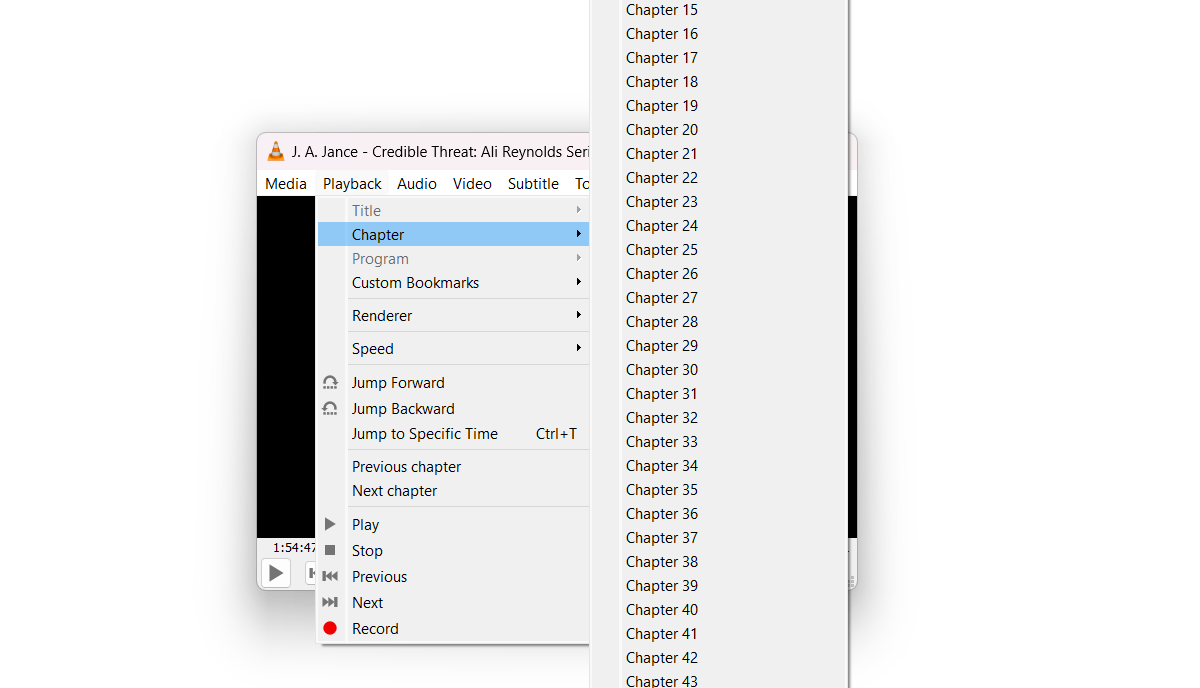
If the audiobook is split into chapters, VLC shows them under the Playback → Chapter menu so you can jump anywhere in the book.